Welcome to the Hike SEO strategy guide for dentists. This guide will help you understand the Hike platform and how to use it to create the perfect SEO strategy for your website.
In part 1, we'll look at Keyword Research and the fundamentals of building a list of keywords for your SEO strategy. In part 2, we'll look at assigning your chosen keywords to pages in the Keyword Sitemap.
To clarify the suggestions in this guide, we'll create an SEO plan for a fictional dentist that we'll name 'My Dentist', represented by the website www.mydentist.com. Located in California, My Dentist provides cosmetic, preventive, and emergency dental services.
This first part of the guide is going to help you build a keyword list like the one below, so keep reading to understand how to apply these learnings to your website SEO strategy in Hike:

We'll then look at Keyword Mapping and how you can assign the keywords you've identified to pages on your website to form a Keyword Sitemap, like the one below:

Build a dental keyword strategy that fills your highest-value chairs
Keyword research isn't about finding the terms with the most searches. It's about deciding which enquiries you want more of, then finding the searches that produce them.
Start with your treatment list and the value of each case. A routine check-up might be worth £60. A single implant is closer to £2,500, Invisalign around £3,000. That gap changes everything about where you should focus.
Most people start with a simple term, like "dentist near me" which has the volume, but it's contested by every practice and corporate group in your area, and it brings mixed enquiries you may not have chairs for. "invisalign [your town]" has a fraction of the searches - and a patient who's already decided on the treatment, already knows roughly what it costs, and is choosing between providers.
Hike guides you through building that list: start from the treatments you want to fill your diary with, expand into the terms patients actually use for them, then filter by competitiveness and local demand. You end up with a shortlist ranked by what each search is worth to the practice, not by how many people typed it.
Where is the Keyword Research tool in the platform?

The keyword research tool can be found at the top of the drop-down list that is displayed when hovering over the ‘Strategy’ tab.
How do I use it?
Add a seed keyword to the 'Add keyword idea' box above. Hike expands each seed into related terms with local search volumes, so you can start broad and narrow down.
Work through these in order - the first two produce your most valuable enquiries.
Start with your highest-value treatments. One seed per treatment you want more of: dental implants, invisalign, teeth whitening, veneers, composite bonding. These bring patients who've already decided what they want and are choosing a provider.
Add urgency terms. emergency dentist, broken tooth, toothache, same day dentist. Lower volume, but these convert faster than anything else you'll rank for.
Then the general terms. dentist, dental practice, NHS dentist, private dentist. Higher volume and more competitive are worth targeting, but they won't be what fills your implant diary.
Add your town, not your county. Patients travel a few miles for a dentist, not across a region. dental implants guildford will show real local demand; dental implants surrey (a fair distance away) mostly won't reflect anyone who'd actually book with you. If you draw from several towns, run each one separately.
Check what competitors are targeting. Look at the practices ranking above you. Specifically their page titles and their service page URLs. If three local practices have a dedicated Invisalign page and you don't, that's a gap worth filling.

- Check out the ‘Suggested Keywords’ feature. Here, the platform will assist you in keyword research by recommending seed keywords based on your chosen business category.

Once you’ve added in a seed keyword, your list of keyword suggestions will then be displayed. Shown next to the keyword suggestions are two different metrics - search volume and difficulty.
Search Volume
California dentist shows a search volume of 4,400. The average number of people searching that term in Google each month.
The instinct is to chase the bigger number. Resist it. Volume tells you how many people are searching, not how many will book. Two things to weigh against it:
How valuable is each enquiry? A routine check-up might be worth £60. A single implant is closer to £2,500. A term with a tenth of the volume can be worth far more to the practice if it brings the patients you actually want.
How many of those searches could realistically become your patients? California dentist is a state-level term. Patients travel a few miles for a dentist, not a few hundred. Most of that 4,400 will never book with My Dentist regardless of where the practice ranks. A town-level term with 200 searches represents more real opportunity than a state-level one with 4,400.
Two caveats on the number itself
It's an annual average divided by twelve, so seasonal swings are invisible. In dentistry that mainly affects cosmetic work: whitening, veneers and bonding climb ahead of wedding season and Christmas, then drop off. Emergency and routine terms stay flat year-round. Planning a whitening push? Check Google Trends for the shape of the year rather than trusting the average.
It also can't tell you why someone searched. Of those 4,400, some are looking for a new dentist, some are existing patients hunting for a phone number, and some are researching costs with no intention of booking anywhere near you. Treat volume as a rough sizing tool, not a forecast.
Keyword Difficulty
Difficulty estimates how hard it is to break into the top ten for a term. Hike looks at the domain authority (DA) of the sites currently ranking on page one and scores the keyword Low, Medium, High or Very High. California dentist scores High because every site in the top ten has a stronger DA than a typical practice site.
Worth knowing: DA means Domain Authority: a third-party estimate of site strength, not a score Google publishes. Treat difficulty as a useful guide to where you'll get traction, not a precise measurement.
Difficulty means something different in local search
This is where dentistry departs from the general advice. For a term like dentist guildford, you're not competing with high-DA national sites, you're competing with other local practices, most of which have modest DA. A term that looks difficult nationally can be very winnable in your town.
And for local queries, a large share of the clicks go to the map pack, which DA barely influences. Proximity to the searcher, your Google Business Profile, and your review volume matter more there than anything on your website. So a High difficulty score on a local term is worth a second look rather than an automatic no.
How to use the score
Don't just pick the easy ones. Build a mix:
- Most of your effort on Low and Medium terms. These are your treatment and location pages, the ones that will actually produce enquiries this year.
- Start one or two High-difficulty pages now anyway. If your most valuable term takes twelve months, that's an argument for starting today, not for avoiding it. Build the page, let it mature, and strengthen it as your site grows.
Rough timescales
Typical time to see movement
Low3–6 months
Medium6–12 months
High12+ months
These assume you're publishing genuinely useful pages and your site's technical foundations are sound. A brand-new site will sit at the slower end of every range; an established practice site with existing rankings will move faster. If you're seeing nothing at all after six months on a Low-difficulty term, the problem is usually the page rather than the keyword
Keyword Examples: What to Target and What to Skip
Here's how that plays out in practice. Below are keywords My Dentist should target, and ones that look tempting but aren't worth the effort.
‘Dentist long beach california’ has a search volume of 3,600 and a low difficulty rating, making it a good keyword to target as it is a popular search term and less competitive.
'California dentist' has a 'high' difficulty, which means the keyword is quite competitive. We consider 'high' and 'very high' difficulty keywords to be more long-term keywords, so compared to the low-to medium-difficulty keywords, they may take longer to rank in Google.
TOP TIP
By including a location such as “dental clinic california” the keyword becomes more specific, likely reducing the difficulty rating and increasing your online visibility in local search engine results in Google.
Keyword Filters
The filters are located on the right side as a drop-down when hovering over 'All keywords.' The filters help search for keywords you could optimize for that you may have missed, providing some excellent opportunities. Below, we'll look into 'Your Ranked Keywords,' 'Blog Ideas,' and 'Competitor Keywords' filters.

Your Ranked Keywords
If you are a business that has been operating for a while and looking for keywords to optimize for, you can click on the filter dropdown and select ‘Your ranked keywords’. This filter shows the keywords you are already ranking for in Google, which you may have been unaware of.
Below is an example of a keyword My Dentist is currently ranking for in Google.

Remember that if you are a site with a new domain, Google may take time to recognize your keywords compared to an established site.
Blog Ideas
Your treatment pages capture patients who already know what they want. Blog content reaches the ones still deciding - someone searching how long do dental implants last or is invisalign painful is months away from booking, but they're forming a shortlist while they read.
That's the job of a practice blog: answer the questions patients ask before they commit, and link from those answers to the treatment page that takes the booking.
Clicking the 'Blog ideas' filter generates blog titles based on the seed keywords you've added. Below is an example for My Dentist:

It's essential to add competitors of a similar size that sell similar products and services for the platform to provide relevant suggestions.
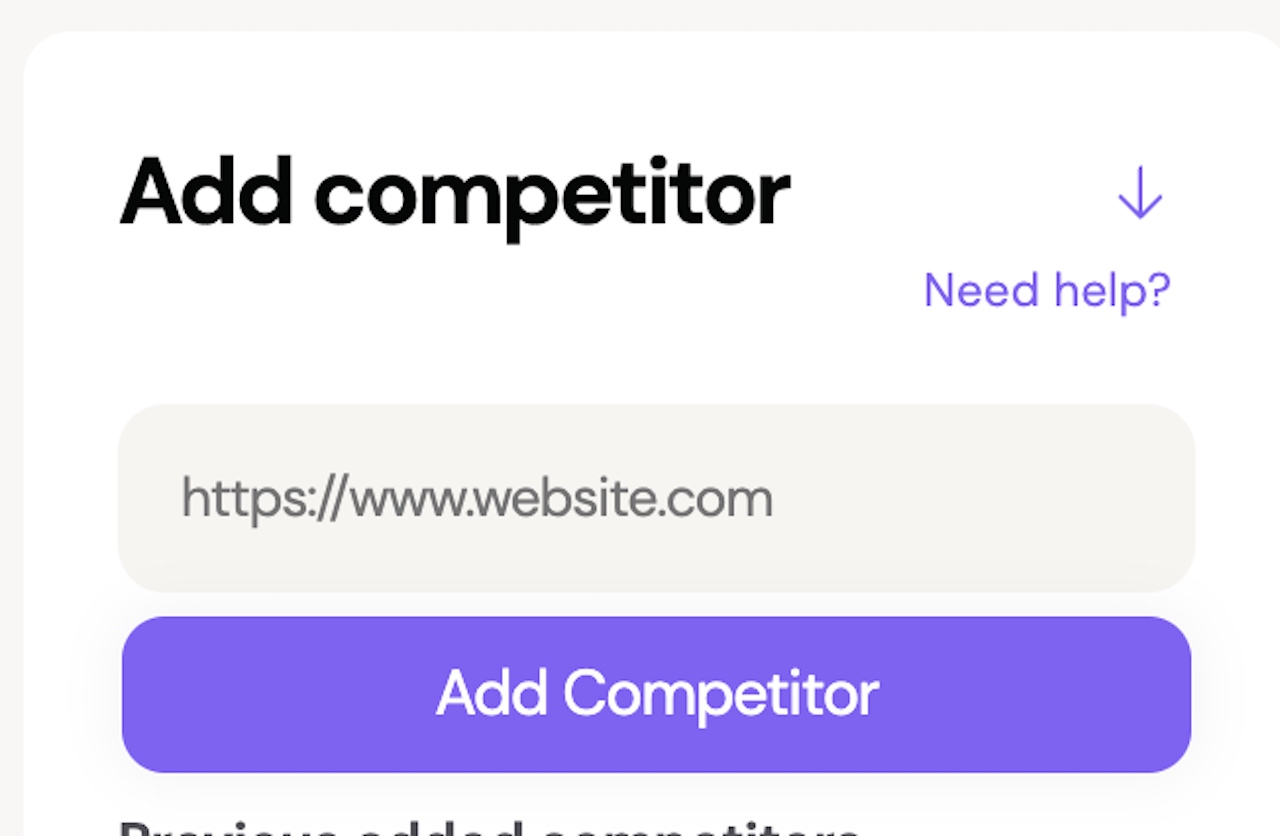
If you’re unsure who your competitors are and need help, click the “Need help” button.
AI Review
Check your chosen keywords align with your business using our AI tool, which reviews your keywords against your industry. To review, click 'Save Keywords,' check your choices, and click 'Yes' to start the review. The AI tool assesses all keywords, adding green tick and yellow question mark icons upon completion.
The AI review tool can help determine how suitable a keyword is for a specific page by providing feedback when it reviews your keywords against your industry. Once the review is complete, you’ll notice a couple of new icons, a green tick or a yellow question mark, shown below.

Below is an example of the green tick that will provide you with reasons why the keyword is good. This example is for a service page of My Dentist's site, specifically for the keyword 'emergency dental services'.

The yellow question mark below suggests the keyword may not suit the industry you have selected and will provide you with reasons why and alternative keywords. Below is an example using the keyword 'veneers'.

Keyword Mapping
So, you’ve now chosen the keywords you want your dental practice's website to rank for, the next step is to start assigning those keywords to pages on your website.
This is known as building a Keyword Sitemap, or ‘keyword mapping’, an essential part of a comprehensive SEO strategy. It helps ensure a website is well-optimized to achieve higher search engine rankings and drive more traffic.
In this second part of the guide, we’re going to continue to look at how ‘My Dentist’ - a fictional dentist based in California - would go about this process and create a Keyword Sitemap. They provide cosmetic, preventive, and emergency dental services.
Read on to see how you can create a keyword sitemap like the one shown below, an example of how My Dentist's sitemap could look once completed:
The Keyword Sitemap
The Keyword Sitemap allows you to organize your selected keywords and the website pages you intend them to rank for. Once completed, the platform is then able to generate bespoke SEO actions to optimize your website.
For example, if you one of your services involves teeth whitening, a keyword you choose might be ‘teeth whitening services’, and we’d want traffic from that keyword to go to the /services/teeth-whitening page.
Where can I find the Keyword Sitemap?

The Keyword Sitemap section can be found underneath the Keyword Research section in the drop-down list under the Strategy tab.
How do I begin the keyword mapping process?

In order to map your keywords to their respective pages, you first need to add the pages to your sitemap. To do this, you need to select the purple ‘Add Page’ button.

You’ll then be presented with three different ways to add your pages. The first option is to select pages from a drop-down list. The second option is to simply copy and paste the URLs of your site’s pages.
The final option involves ticking the box next to ‘Check this box if you haven’t built this page yet’. You can then add the URLs of potential pages that don’t currently exist to the sitemap. In My Dentist's case, they don't currently have a page related to dental implants, so they could plan out a service page (www.mydentist.com/services/dental-implants) to target keywords related to dental implants.
What pages go in your sitemap?
Not every page on your site needs a keyword. You're mapping the pages that either bring patients in or help them decide.
Home page. Carries your broadest terms - the practice name plus general searches like dentist[town] and private dentist [town]. Don't over-invest here. It's rarely what ranks for treatment searches.
One page per treatment. This is the part practices get wrong most often. A single "Cosmetic Dentistry" page can't rank for implants, veneers, whitening and bonding - those are separate searches with separate patient questions and very different case values. Give each its own page:
- Dental implants →
dental implants [town],tooth implant cost - Invisalign →
invisalign [town],clear braces [town] - Teeth whitening →
teeth whitening [town],professional teeth whitening - Emergency →
emergency dentist [town],same day dentist [town] - Routine and hygiene →
dental check up [town],dental hygienist [town]
The emergency page deserves particular attention. Those searches are urgent and mobile, so the page needs your phone number visible immediately, your out-of-hours arrangements stated plainly, and a clear answer on whether you see patients who aren't registered.
New patient and fees pages. new patient offer [town], dentist prices [town]. Cost is the question that stops most bookings — a page that answers it honestly captures searches your competitors avoid.
Blog posts cover the informational searches described above, and each should link to the relevant treatment page.
What to leave out: thank-you pages, booking confirmations, privacy policy, terms, staff bios and internal login pages. They serve a purpose on the site but don't need keywords, and mapping them clutters your sitemap without adding anything.
Assigning keywords to pages
Once your pages are in the sitemap, assign keywords to each one. Aim for three or four per page - a primary term plus close variations.
The instinct is to load more in, but it works against you:
- One page, one job. A page targeting
dental implantsandteeth whiteninganswers neither question properly. Google can't tell what it's for, and neither can the patient who lands on it. - Title tags and meta descriptions have limits — roughly 70 and 155 characters. Four keywords won't fit naturally, and a title stuffed with terms gets fewer clicks than one written for a person.
- Variations aren't extra keywords.
dental implants guildford,tooth implants guildfordandimplant dentist guildfordare one target, not three. Google understands they mean the same thing.
Don't have these pages yet?
Most practices won't at this stage — a site with one "Treatments" page needs several new ones before this strategy can work.
Hike creates them for you, built around the keywords you've just mapped. Each page is written for the treatment and the search terms assigned to it, so the structure you've planned here becomes the site you actually have. You can review and edit before anything goes live.
As shown above, in My Dentist's keyword sitemap, no more than 4 keywords have been assigned to each page. They are also all specific to the content of their respective pages, and they do not overlap in any way.

To assign keywords to a page, press ‘Add Keyword’ and select the keyword(s) you want to add. You also have the ability to filter these down by typing in the box in the top left corner.
One keyword, one page
A keyword should only ever be assigned to one page.
When two pages target the same term, they compete with each other rather than with your competitors. Google has to pick one, and it won't always pick the one you'd want. Meanwhile, any authority you build splits across both instead of concentrating on one. (You'll see this called keyword cannibalization.)
The trap is close variations. If you've assigned preventive dental services california to your preventive treatments page and preventive dental services to a blog post about the benefits of preventive care, you've split the same term across two pages.
The test isn't how similar the words look - it's whether someone searching them wants the same thing. Both of those are transactional: the searcher is looking for a practice, not an explanation. So both belong on the service page.
That doesn't leave the blog post with nothing. It should target the informational version instead: why is preventive dentistry important, or how often should I see a dentist. Different intent, different page, no competition.
TOP TIP
Some of your keywords may already be ranking for your pages. If they are, the URL of the page will be shown under ‘Ranking URL’ and the position under ‘Ranking Position’.
You may find that you already rank for keywords that mention your company name. We don’t recommend always adding your company name within your selected keywords, as it is likely you are already ranking in the top positions for those keywords, and selecting more generic keywords will allow you to target those people who are searching for what you offer, but might not necessarily already be aware of your company.

You can also make use of the ‘Auto-Assign’ feature, which will automatically assign keywords to a page in the sitemap if those keywords already rank within the top five pages of Google for a given page.

Another way to help you choose keywords for a page is by hovering over the three dots found on the right side of each page in the sitemap.

Doing this will show the pop-up box shown above. From here, you can also select ‘Ranking Keywords’ to see any keywords that the page currently ranks for, regardless of whether you have selected them or not. This way, you can identify new keywords you may not have found during the initial keyword research process.
Keyword Confusion
You may find that after you have assigned a keyword to a page within your sitemap, a small red icon is displayed next to the keyword, as shown below.

This indicates that your site does already rank for this keyword, but the page that it is ranking for is different to the one it has been assigned to.
To check which page the keyword is actually ranking for, simply hover over the keyword and take a look at the pop-up bubble, specifically at the part that says ‘Ranking Page’.
If after hovering over a keyword you discover that a forward slash is displayed as the ranking page, then this indicates that it is the home page that is ranking.

It is important when you notice instances of this that you also pay close attention to the ‘Ranking Position’. If you notice the keyword is already ranking well for a different page, then you may want to reassign the keyword to the page it's ranking for.
However, if the ranking position is deeper into the results, then attempting to swap the page the keyword is ranking for will be less risky as it is less likely that a high amount of traffic is coming through that page.
Keyword Intent
Intent tells you why someone searched, which determines which page should answer them. Hike categorises every keyword as transactional, informational or mixed.
Transactional the searcher is ready to act. emergency dentist [town], invisalign [town], dental implants cost [town]. These go on your service and treatment pages, where they can book or call.
Informational the searcher wants an answer, not a practice. how long do dental implants last, is invisalign painful, why do my gums bleed. These go on blog posts and guides, each linking through to the relevant treatment page.
Mixed could be either, so judge it on the page you'd want them to land on. teeth whitening might be someone researching or someone ready to book. If you have a strong whitening service page, put it there; if you're building awareness first, a guide that leads into the service page works better.
Getting this wrong is the most common reason a page fails to rank despite good content. A service page targeting how much does a filling cost will lose to articles that answer the question, because that's what the searcher wanted.
Intent shows when you're adding a keyword to the sitemap, and you can check it afterwards by hovering over any assigned keyword to see its characteristics.
AI Review
Once you have finished assigning your keywords to the pages in your sitemap, you can utilize the platform’s trained AI tool to conduct a review of your choices by simply selecting ‘Review Sitemap’ at the bottom of your screen.

After selecting confirm, in a matter of minutes, the review will be completed. Either a green tick or yellow question mark will be displayed, indicating whether the keywords are suitable or not. Hovering over the tick or the question mark will display a pop-up bubble with a justification of why the keywords may or may not be suitable.
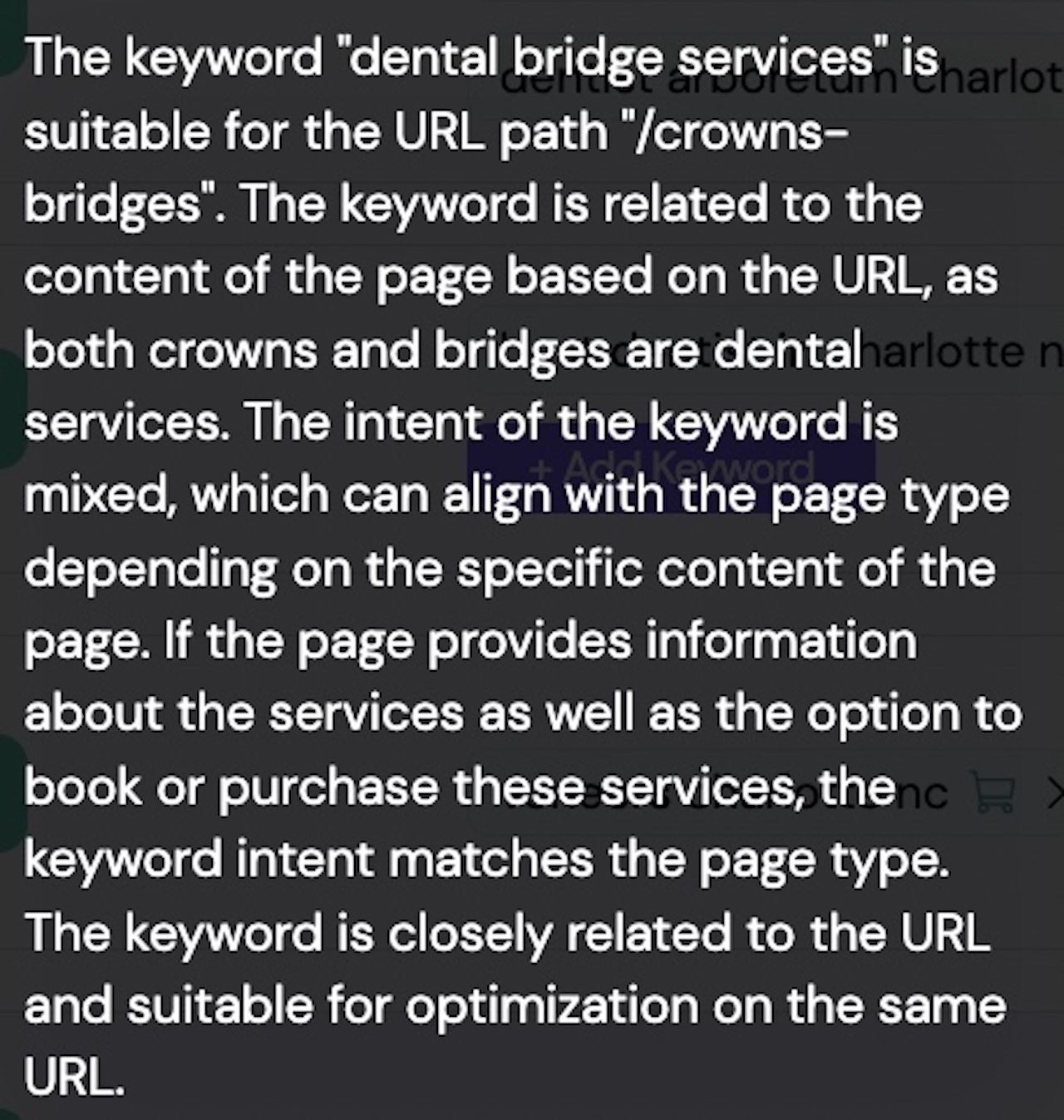
Below is an example of how the justification of the AI tool’s decision could look when reviewing My Dentist's crowns and bridges service page for the keyword ‘dental bridge services’.
How much does SEO cost for a dentist?
Most UK dental practices pay between £500 and £2,000 a month for SEO. Freelancers sit at the lower end, generalist agencies in the middle, and dental-specialist agencies above it, often on a 6 to 12 month contract. Platforms that automate the work, like Hike, start at £99 a month.
The spread is that wide because price mostly reflects how much human time you're buying, not how much SEO you're getting. A £2,000 retainer buys a few days of specialist attention each month. A £500 one buys a few hours, which is why cheaper retainers often produce monthly reports, rather than new patients.
What almost no quote will tell you is what it costs in patients. A £1,200 monthly retainer is £14,400 a year around six implant cases before the practice breaks even, and that's assuming the work delivers. Before comparing prices, work out how many patients each option needs to bring in to pay for itself. It changes which number looks expensive.
What to do next
You now have the two foundations of a dental SEO strategy: a keyword list built around the treatments you want more of, and a sitemap that assigns each keyword to the page that should own it.
Three things to do this week:
- Build your keyword list, starting with your highest-value treatments rather than general terms.
- Map each keyword to a page - one keyword, one page, matched to intent.
- Note the pages you don't have yet. Most practices find they need separate treatment pages before the strategy can work. Hike will build them for you, aligned to the keywords you've mapped.
A realistic expectation: low-difficulty terms tend to show movement in three to six months, and your most valuable terms will take longer. That's an argument for starting the high-value pages now rather than putting them off.
Log in to Hike to start, or talk to our team if you'd like a hand setting up your first strategy.
Next in this series: Part 3 — Onsite Optimisation

.webp)